
A closer look at the decisions behind “Interactive HTML Presentations: What They Are and When to Use Them”
A reader can understand “Interactive HTML Presentations: What They Are and When to Use Them” more clearly by first looking at “What is an interactive HTML presentation.” Model the user, task, environment, device, and failure cost before choosing controls.
The practical challenge begins when general advice meets real content, real constraints, and a real audience. How will visuals, camera movement, narration, captions, timing, and export behave as one experience? What could be cropped, delayed, inaudible, inaccessible, or unavailable when the result reaches a different device or environment? The sections ahead use these questions to move from the central idea to concrete decisions, technical criteria, and an applied example.
What is an interactive HTML presentation?
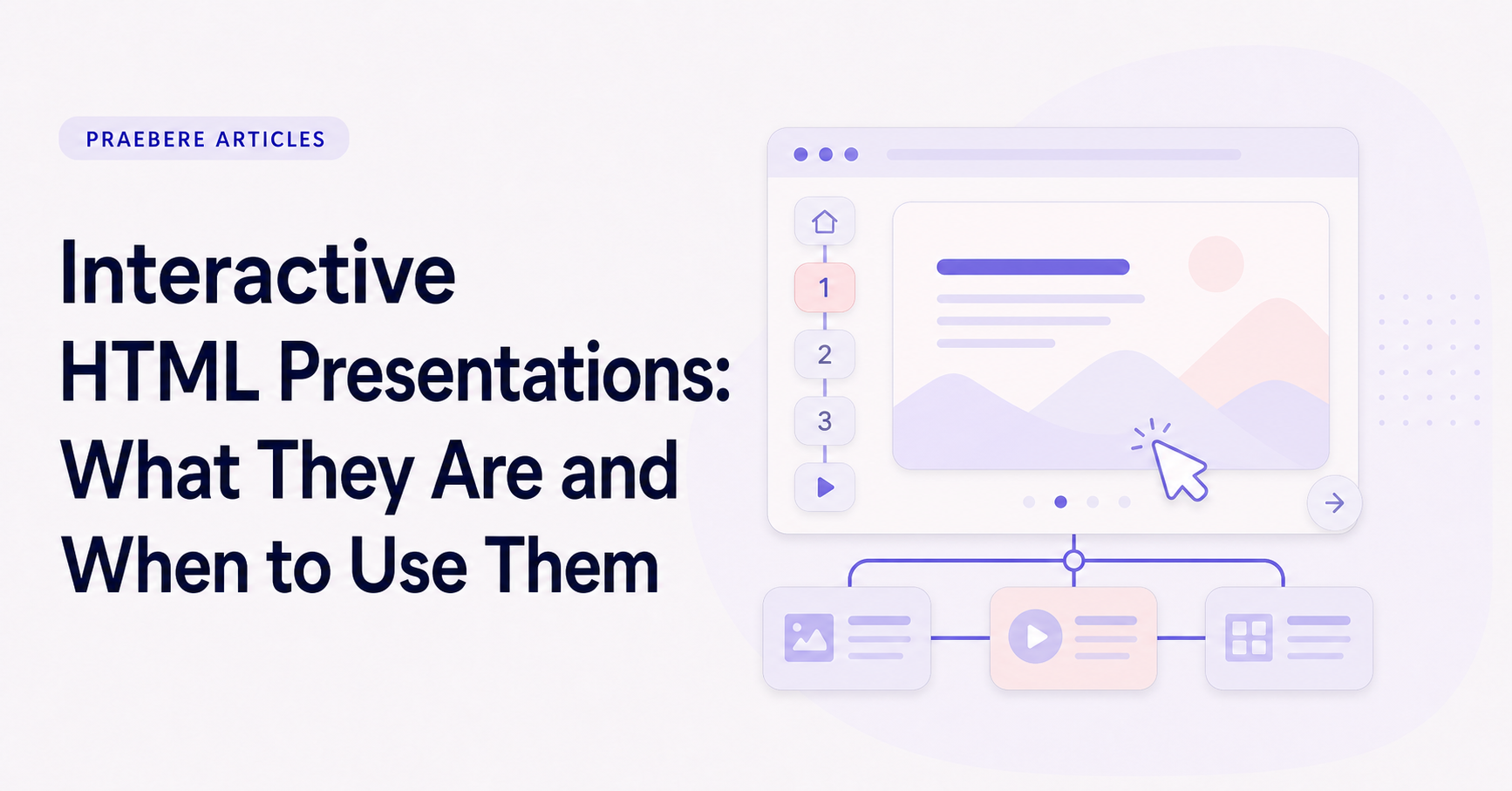
An interactive HTML presentation is a web document that opens in a browser and responds to the viewer. Unlike a video, it can include navigation controls, selectable steps, animated transitions, and a diagram that remains inspectable.
A self-contained HTML file can package the presentation logic and visual content together. The exact browser and security settings still affect which embedded media features are available, so the file should be tested before distribution.
Choose between guided video and exploration
Video is best when timing, narration, and a fixed viewing order are essential. HTML is useful when the audience may need to move backward, jump to a specific step, or inspect the complete visual model.
The same project can serve both needs: export a video for a guided explanation and an interactive version for reference after the presentation.
Useful applications for interactive presentations
Interactive process maps work well for onboarding, support procedures, technical architecture, decision trees, and workshop follow-up material. They give the audience more control than a linear recording.
- A product workflow people revisit.
- A decision tree with several valid paths.
- A classroom diagram explored at different speeds.
- A project handoff with visual dependencies.
Plan distribution and accessibility
Share the file through a trusted channel and explain that it opens in a modern browser. Keep a video or PDF alternative when recipients cannot open local HTML files or when organizational policy restricts them.
Provide meaningful labels, readable contrast, and written context for important audio. Interactive behavior should add choice without hiding essential information.
Export the visual sequence as HTML
Praebere can export an ordered flowchart as an interactive HTML presentation. The viewer can follow the camera sequence while retaining access to the visual structure.
Use this format when the presentation is also a reference tool. Use video when the exact pace and complete narration should remain unchanged.
Technical implementation notes
Model the user, task, environment, device, and failure cost before choosing controls. Direct manipulation needs visible affordances, immediate feedback, forgiving hit targets, keyboard equivalents, undo, and state that remains understandable without relying on memory.
Evaluate representative tasks with observable success criteria such as completion rate, time, errors, recoveries, and assistance required. Include touch, keyboard, zoom, small screens, latency, empty states, invalid input, and interrupted work in the test plan. The most relevant concepts here are interactive HTML presentation, HTML presentation, interactive presentation. Define them when first used and apply each term consistently to an observable element, rule, or outcome.
- The current state and available action are visible
- Errors are preventable and recoverable
- Keyboard and touch paths reach the same outcome
- Testing uses realistic content and devices
Worked example: Interactive HTML Presentations: What They Are and When to Use Them
Suppose a presenter explains a process map in a three-minute recording. Use 16:9 framing, keep important labels inside safe margins, write one narration objective per step, record a short room-tone sample, and position webcam video where it does not cover diagram content.
Export a draft and inspect it on desktop and mobile. Check crop, zoom, audio peaks, synchronization, caption timing, and whether interactive or offline assets still load in the target environment. Correct the source sequence and re-export rather than masking a structural problem in post-production.
Conclusion
Rather than reducing “Interactive HTML Presentations: What They Are and When to Use Them” to a checklist, the article linked what is an interactive html presentation, choose between guided video and exploration, useful applications for interactive presentations, plan distribution and accessibility, and export the visual sequence as html. That combination explains not only what to do, but also why the choices matter and how to inspect the outcome.
The strongest takeaway, in our opinion, is that good interaction design makes state, consequences, and recovery understandable across mouse, keyboard, and touch. The interface should consume less attention than the creative problem the user is trying to solve.
Create the visual journey
Turn your process into a presentation
Build the diagram, choose the sequence, add narration or webcam video, and preview the camera movement in your browser.
Open Praebere