
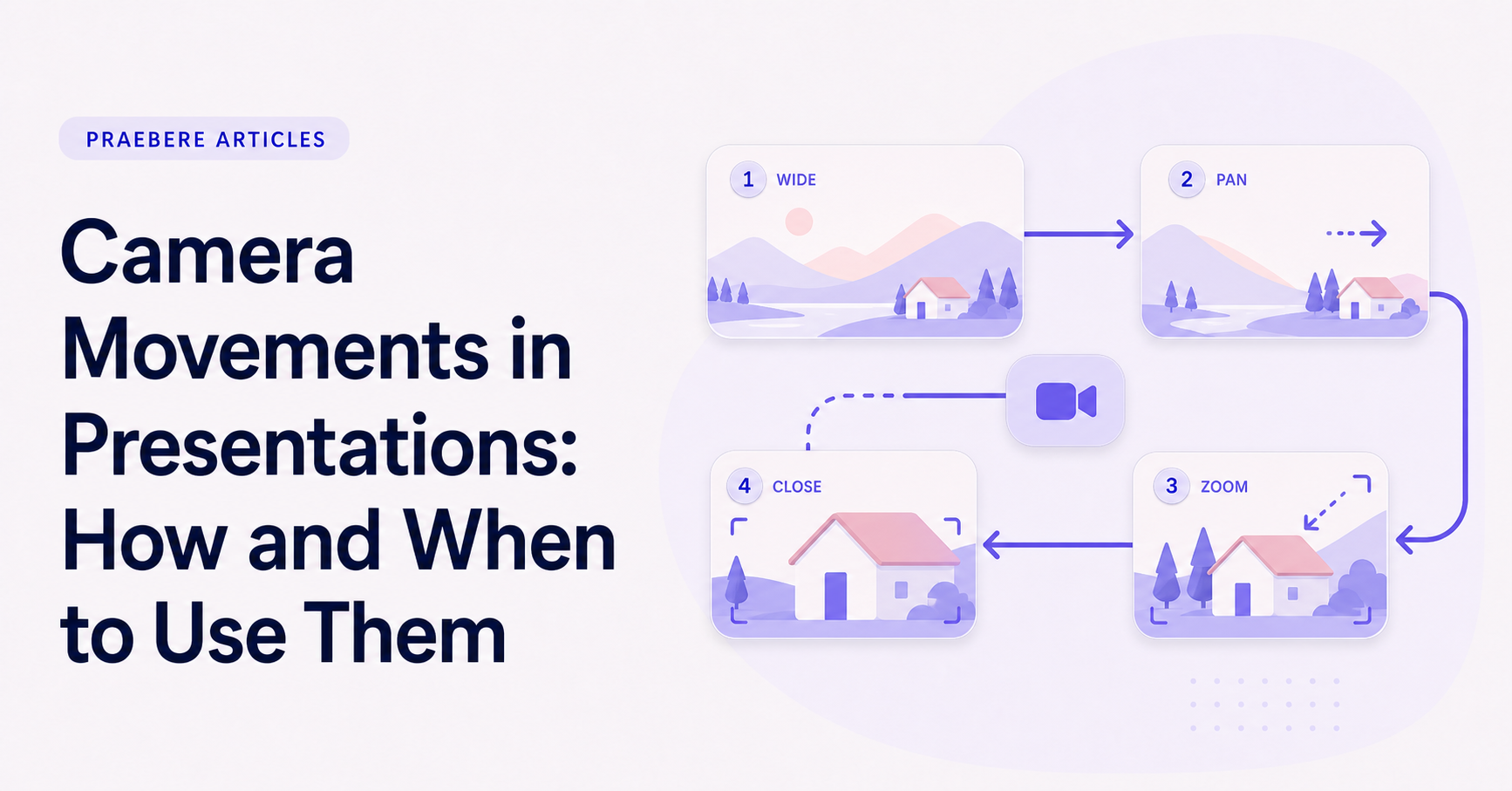
A closer look at the decisions behind “Camera Movements in Presentations: How and When to Use Them”
One issue sets the direction for “Camera Movements in Presentations: How and When to Use Them”: “Camera movement controls what the audience can see.” Motion should encode a change in state, sequence, hierarchy, or spatial relationship.
The practical challenge begins when general advice meets real content, real constraints, and a real audience. What information does the movement reveal that a static frame cannot show as clearly? Where should the eye land, how long does orientation take, and what happens for viewers who prefer or require reduced motion? The sections ahead use these questions to move from the central idea to concrete decisions, technical criteria, and an applied example.
Camera movement controls what the audience can see
In a visual presentation, the camera is the frame through which the audience experiences the board. Moving that frame can connect distant ideas, isolate a detail, or return to an overview. It changes not only composition but also the viewer’s understanding of space.
Plan camera movement after the visual structure is clear. If shapes and relationships are poorly organized, movement will not repair the explanation. A strong camera path follows the logic already present in the board.
Zoom when the level of detail changes
Zooming in can introduce supporting text, a decision, or an internal part of a larger system. Zooming out can restore context or compare several branches. The change in scale should correspond to a change in the explanation.
Avoid repeated small zoom adjustments that do not reveal new information. Excessive scale changes can feel unstable and make text harder to follow. Choose a limited number of useful framing levels and reuse them consistently.
Use wider views as landmarks
A wider view helps the audience understand where the current step belongs in the complete system. Use it at the beginning, at major branch points, or when returning from a detailed explanation. The overview should orient the viewer, not force them to read every label at once.
Highlight or frame the relevant region before moving closer. This prepares the audience for the direction of travel and makes the transition feel connected to the narrative rather than arbitrary.
Design and preview the complete camera path
Sequence camera moves according to the story, balance movement with stable reading time, and check that no important element is cropped. Test the presentation at its final aspect ratio because a frame that works on the board may not work in the exported video.
Praebere is built around this camera-path model. You order elements, configure zoom and framing, attach voice or webcam video, and export the guided sequence. The camera should make the audience feel that it is moving through one connected explanation rather than jumping between unrelated slides.
Technical implementation notes
Motion should encode a change in state, sequence, hierarchy, or spatial relationship. Specify the start state, end state, duration, easing curve, trigger, and what the audience should notice; otherwise animation becomes decoration rather than information.
Preserve object continuity and avoid simultaneous competing motion. Preview at normal speed, support reduced-motion preferences where the delivery format allows it, and confirm that the same meaning remains available in a static frame, transcript, or alternative explanation. The most relevant concepts here are camera movements in presentations, presentation zoom, camera pan presentation. Define them when first used and apply each term consistently to an observable element, rule, or outcome.
- One attentional target at a time
- Stable spatial continuity between states
- Duration matches the amount of information revealed
- Static or reduced-motion alternative preserves meaning
Worked example: Camera Movements in Presentations: How and When to Use Them
Picture a five-step incident-response diagram. Keep the complete map stable, then move the camera to the active node over roughly the time needed to orient the viewer. Reveal the outgoing connector only when explaining the handoff, and pause before changing direction at a decision.
Compare the animated version with a static overview. If movement does not clarify sequence, state change, or spatial relationship, remove it. Also preview a reduced-motion treatment using cuts or gentle fades so the explanation does not depend on sweeping zooms.
Conclusion
Seen as a whole, the sections on camera movement controls what the audience can see, pan between related elements, zoom when the level of detail changes, use wider views as landmarks, and design and preview the complete camera path move from explanation to application. They show that “Camera Movements in Presentations: How and When to Use Them” depends on both a clear concept and disciplined execution.
For us, the idea reaches its most useful conclusion here: movement deserves a place only when it explains sequence, continuity, state, causality, or emphasis. Restrained informative motion strengthens an explanation; purposeless motion taxes attention.
Create the visual journey
Turn your process into a presentation
Build the diagram, choose the sequence, add narration or webcam video, and preview the camera movement in your browser.
Open Praebere